Install Karpenter an Existing EKS Cluster
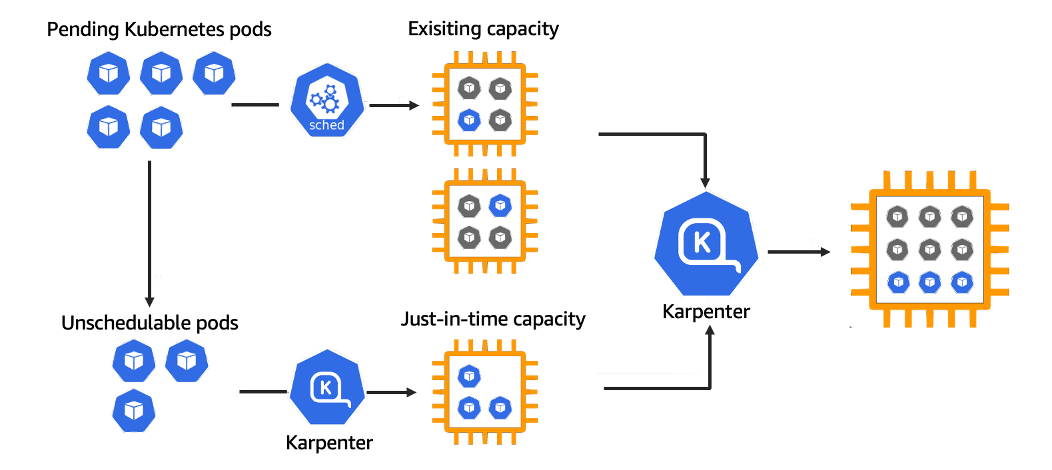
I would like to share how to create an EKS cluster using the AWS management console and create eks node_group autoscaling with Karpenter using aws_cli and helm_chart. And how to manage the EKS cluster using Kubectl from the client machine. Before we start, we need to setup first the following tools:
I attached links for installation. Click below links and easy to install step-by-step
1. Sign in to the AWS Management Console
First, open the aws console https://aws.amazon.com/console/
Sign in with your account username and password.

2. Create EKS VPC resources with AWS Management Console
Search VPC on the AWS console and enter the VPC. And click Your VPCs > Create VPC

Currently, we just create vpc only like this. If you want to create VPC and more one-time, you need to create yourself.

After Creating VPC, we need to create IGW and attach it to the VPC
Go to VPC > Internet Gateway > Create Internet Gateway and create an internet gateway with the following: After creating IGW we need to attach IGW to the previously created VPC.


After creating the VCP and IGW, we need to create four subnets—two for public and two for private. Go to > Subnets > Create subnet

And then create four subnets with the following:. I will show one subnet, for example, you need to create the next three subnets yourself. In my case, I’m using subnet CIRDs like this
172.16.1.0/24 > for public subnet-1a
172.16.2.0/24 > for private subnet-1b
172.16.3.0/24 > for public subnet-1a
172.16.4.0/24 > for private subnet-1b

Select your previously created vpc ID
Define the name of your subnet. In my case, I’m using eks-public-subnet-1a because I’m using this subnet for public and create it on us-east-1a
Select AZ for your subnet as I talk above.
Create a subnet CIDR block with a VPC subnet range.
After creating the subnets, we need to create route tables for these subnets to access the internet and access from the internet. I will show one public route table, and you need to create a private route table yourself using the same way. Go to Route tables > Create route table


Create route table name
Select previously created vpc
Create route table
After creating the route tables, we need to associate our subnets to the route tables. And add route.


Click subnet associate
Click Edit subnet association

Select which subnet do you want to associate with route table. In my case, I had to select two public subnets because this one is a public route for me.
Click save associate
And then we need to create route


Click add route
Select your destination
Select your target. In my case, I’m selected IGW to the destionation 0.0.0.0/0
Select your target resources ID.
Click save change
After creating the public route table, we need to create the private route. Before we create a private route, we need to create NAT Gateway first. It means our private resources are access to the internet using NAT. If you want to know how NAT works, you can read this overview here.
First, we need to allocate elastic ip for NAT


Click add new tag
Enter your tag key
Enter your tag value
Click Allocate
After creating elastic ip for NAT, we need to create NAT
Go to > NAT gateways > Create NAT gateway

Create your NAT name
Select a subnet in which to create the NAT gateway. In my case, I’m selected one of my public subnet
Assign an elastic IP address to the NAT gateway previously we created
Click create NAT gateway
After creating the NAT gateway, we need to create a private route table. You can follow the previously created public route table. There is the same. In the private route table, we just need to change subnet associations and target from IGW to NAT.
Note: subnets should be private subnets and target is NAT
3. Create IAM Roles
First, we need to create eks_cluster_role. Search IAM from the management console.
Click > Roles > Create role

Select AWS service
Search EKS
Select EKS-Cluster and click Next.

- Enter role name and create role
After creating EKS_Cluster Role, we need to create ekc_node_role.
Go to > Roles > Create role > Select AWS Service and search EC2 and click Next
Attach the following policies:
AmazonEFSCSIDriverPolicy
AmazonEKSWorkerNodePolicy
AmazonEC2ContainerRegistryReadOnly
AmazonEKS_CNI_Policy
AmazonEBSCSIDriverPolicy
And click next and define role name and create role.
4. Create EKS Cluster
Search EKS and click Elastic Kubernetes Cluster and click create cluster


Enter unique name of your cluster
Select cluster IAM role previously you created
Select kubernetes version you want
Select cluster administrator access allow or not
Select cluster authentication mode
Create tag for your cluster
Click Next

Select your eks vpc previously you created
Select which subnets do you want to create eks cluster in your vpc
Select your security group for eks cluster. In my case, I’m using allowall for testing purpose. Not recommended for production.
Select where can access your kubernetes api endpoint
Click Next

In this step, you can enable logs for control plain components. In my case, I just skip this step and click Next.
The next step is to select add-ons. I’m using default add-ons and click Next. Next, and Create. This will take 10 to 15 minutes for me.

This is our brand new eks_cluster. There are no resources or compute. We need to add a node group for our worker nodes.
Click your eks_cluster and select compute
Click add node group


Define your node group name
Select your node IAM role previously created
If you want to use your EC2 launch template you previously created, you can enable this.
Add labels for your nodes. This is used for manual scheduling with the node selector when we deploy our applications.
You can add taint for your nodes. If you don’t know how taints and tolerations work, you can read this. And click Next.


Select your nodes AMI type
Select capacity for node group, which is on-demand or spot
Select instance type for node group.
In picture labels 4,5 and 6, we are using the node autoscaling group.
Desired size (it means the desire node; how many nodes do we need to run always)
Minimum size (it means the minimum number of nodes that when we scale in to)
Maximum size (it means the maximum number of nodes that when we scale out)
The last one is the minimum unavailable node we can define and click Next.

Select subnets which subnets do you want to create your nodes. And click next and review and create your node group. It will take a few minutes.

When our node group is ready, we can see one node under the compute session. It is ready, and our node group is active.
After creating brand new eks cluster, we need to connect cluster from our local machine. I hope you already installed requirements tools. If not, please install first.
Firstly, we need to setup AWS cli in our local machine to connect eks cluster.
Generate access key for aws cli
Go to aws management console
Select IAM > User > Click your IAM user > click Security credentials > create access key
After this, copy access key and secret key
aws configure

And Enter. After this, you can check with the following command:
aws sts get-caller-identity
If there is no issue, you can connect your cluster from a local machine using an IAM user.
Note: There is the same IAM user when you create an eks cluster. If not, you need to modify aws-auth configmap. You can update kubeconfig file using this command:
aws eks update-kubeconfig --region us-east-1 --name eks-cluster1
After this, you can check your node using this command
kubectl get nodes
5. How to setup karpenter for node autoscaler
Before we setup, we need to create oidc-provider first.
  cluster_name=eks-cluster1
  oidc_id=$(aws eks describe-cluster --name $cluster_name --query "cluster.identity.oidc.issuer" --output text | cut -d '/' -f 5)
  echo $oidc_id
Determine whether an IAM OIDC provider with your cluster’s issuer ID is already in your account
aws iam list-open-id-connect-providers | grep $oidc_id | cut -d "/" -f4If output is returned, then you already have an IAM OIDC provider for your cluster, and you can skip the next step.
Create an IAM OIDC identity provider for your cluster with the following command:
eksctl utils associate-iam-oidc-provider --cluster $cluster_name --approveAfter this, we need to define environment variables.
  KARPENTER_NAMESPACE=kube-system
  CLUSTER_NAME=eks-cluster1
  export KARPENTER_VERSION="1.0.3"
  AWS_PARTITION="aws"
  AWS_REGION="$(aws configure list | grep region | tr -s " " | cut -d" " -f3)"
  OIDC_ENDPOINT="$(aws eks describe-cluster --name "${CLUSTER_NAME}" \
      --query "cluster.identity.oidc.issuer" --output text)"
  AWS_ACCOUNT_ID=$(aws sts get-caller-identity --query 'Account' \
      --output text)
  K8S_VERSION=1.29
  ARM_AMI_ID="$(aws ssm get-parameter --name /aws/service/eks/optimized-ami/${K8S_VERSION}/amazon-linux-2-arm64/recommended/image_id --query Parameter.Value --output text)"
  AMD_AMI_ID="$(aws ssm get-parameter --name /aws/service/eks/optimized-ami/${K8S_VERSION}/amazon-linux-2/recommended/image_id --query Parameter.Value --output text)"
  GPU_AMI_ID="$(aws ssm get-parameter --name /aws/service/eks/optimized-ami/${K8S_VERSION}/amazon-linux-2-gpu/recommended/image_id --query Parameter.Value --output text)"
After setting up environment variables, we need to create karpenter IAM roles. Copy and paste in your terminal.
  echo '{
      "Version": "2012-10-17",
      "Statement": [
          {
              "Effect": "Allow",
              "Principal": {
                  "Service": "ec2.amazonaws.com"
              },
              "Action": "sts:AssumeRole"
          }
      ]
  }' > node-trust-policy.json

  aws iam create-role --role-name "KarpenterNodeRole-${CLUSTER_NAME}" \
      --assume-role-policy-document file://node-trust-policy.json
Now attach the required policies to the role
  aws iam attach-role-policy --role-name "KarpenterNodeRole-${CLUSTER_NAME}" \
      --policy-arn "arn:${AWS_PARTITION}:iam::aws:policy/AmazonEKSWorkerNodePolicy"

  aws iam attach-role-policy --role-name "KarpenterNodeRole-${CLUSTER_NAME}" \
      --policy-arn "arn:${AWS_PARTITION}:iam::aws:policy/AmazonEKS_CNI_Policy"

  aws iam attach-role-policy --role-name "KarpenterNodeRole-${CLUSTER_NAME}" \
      --policy-arn "arn:${AWS_PARTITION}:iam::aws:policy/AmazonEC2ContainerRegistryReadOnly"

  aws iam attach-role-policy --role-name "KarpenterNodeRole-${CLUSTER_NAME}" \
      --policy-arn "arn:${AWS_PARTITION}:iam::aws:policy/AmazonSSMManagedInstanceCore"
Create role for karpenter controller
  cat << EOF > controller-trust-policy.json
  {
      "Version": "2012-10-17",
      "Statement": [
          {
              "Effect": "Allow",
              "Principal": {
                  "Federated": "arn:${AWS_PARTITION}:iam::${AWS_ACCOUNT_ID}:oidc-provider/${OIDC_ENDPOINT#*//}"
              },
              "Action": "sts:AssumeRoleWithWebIdentity",
              "Condition": {
                  "StringEquals": {
                      "${OIDC_ENDPOINT#*//}:aud": "sts.amazonaws.com",
                      "${OIDC_ENDPOINT#*//}:sub": "system:serviceaccount:${KARPENTER_NAMESPACE}:karpenter"
                  }
              }
          }
      ]
  }
  EOF

  aws iam create-role --role-name "KarpenterControllerRole-${CLUSTER_NAME}" \
      --assume-role-policy-document file://controller-trust-policy.json

  cat << EOF > controller-policy.json
  {
      "Statement": [
          {
              "Action": [
                  "ssm:GetParameter",
                  "ec2:DescribeImages",
                  "ec2:RunInstances",
                  "ec2:DescribeSubnets",
                  "ec2:DescribeSecurityGroups",
                  "ec2:DescribeLaunchTemplates",
                  "ec2:DescribeInstances",
                  "ec2:DescribeInstanceTypes",
                  "ec2:DescribeInstanceTypeOfferings",
                  "ec2:DeleteLaunchTemplate",
                  "ec2:CreateTags",
                  "ec2:CreateLaunchTemplate",
                  "ec2:CreateFleet",
                  "ec2:DescribeSpotPriceHistory",
                  "pricing:GetProducts"
              ],
              "Effect": "Allow",
              "Resource": "*",
              "Sid": "Karpenter"
          },
          {
              "Action": "ec2:TerminateInstances",
              "Condition": {
                  "StringLike": {
                      "ec2:ResourceTag/karpenter.sh/nodepool": "*"
                  }
              },
              "Effect": "Allow",
              "Resource": "*",
              "Sid": "ConditionalEC2Termination"
          },
          {
              "Effect": "Allow",
              "Action": "iam:PassRole",
              "Resource": "arn:${AWS_PARTITION}:iam::${AWS_ACCOUNT_ID}:role/KarpenterNodeRole-${CLUSTER_NAME}",
              "Sid": "PassNodeIAMRole"
          },
          {
              "Effect": "Allow",
              "Action": "eks:DescribeCluster",
              "Resource": "arn:${AWS_PARTITION}:eks:${AWS_REGION}:${AWS_ACCOUNT_ID}:cluster/${CLUSTER_NAME}",
              "Sid": "EKSClusterEndpointLookup"
          },
          {
              "Sid": "AllowScopedInstanceProfileCreationActions",
              "Effect": "Allow",
              "Resource": "*",
              "Action": [
              "iam:CreateInstanceProfile"
              ],
              "Condition": {
              "StringEquals": {
                  "aws:RequestTag/kubernetes.io/cluster/${CLUSTER_NAME}": "owned",
                  "aws:RequestTag/topology.kubernetes.io/region": "${AWS_REGION}"
              },
              "StringLike": {
                  "aws:RequestTag/karpenter.k8s.aws/ec2nodeclass": "*"
              }
              }
          },
          {
              "Sid": "AllowScopedInstanceProfileTagActions",
              "Effect": "Allow",
              "Resource": "*",
              "Action": [
              "iam:TagInstanceProfile"
              ],
              "Condition": {
              "StringEquals": {
                  "aws:ResourceTag/kubernetes.io/cluster/${CLUSTER_NAME}": "owned",
                  "aws:ResourceTag/topology.kubernetes.io/region": "${AWS_REGION}",
                  "aws:RequestTag/kubernetes.io/cluster/${CLUSTER_NAME}": "owned",
                  "aws:RequestTag/topology.kubernetes.io/region": "${AWS_REGION}"
              },
              "StringLike": {
                  "aws:ResourceTag/karpenter.k8s.aws/ec2nodeclass": "*",
                  "aws:RequestTag/karpenter.k8s.aws/ec2nodeclass": "*"
              }
              }
          },
          {
              "Sid": "AllowScopedInstanceProfileActions",
              "Effect": "Allow",
              "Resource": "*",
              "Action": [
              "iam:AddRoleToInstanceProfile",
              "iam:RemoveRoleFromInstanceProfile",
              "iam:DeleteInstanceProfile"
              ],
              "Condition": {
              "StringEquals": {
                  "aws:ResourceTag/kubernetes.io/cluster/${CLUSTER_NAME}": "owned",
                  "aws:ResourceTag/topology.kubernetes.io/region": "${AWS_REGION}"
              },
              "StringLike": {
                  "aws:ResourceTag/karpenter.k8s.aws/ec2nodeclass": "*"
              }
              }
          },
          {
              "Sid": "AllowInstanceProfileReadActions",
              "Effect": "Allow",
              "Resource": "*",
              "Action": "iam:GetInstanceProfile"
          }
      ],
      "Version": "2012-10-17"
  }
  EOF

  aws iam put-role-policy --role-name "KarpenterControllerRole-${CLUSTER_NAME}" \
      --policy-name "KarpenterControllerPolicy-${CLUSTER_NAME}" \
      --policy-document file://controller-policy.json
We need to add tags to our nodegroup subnets so Karpenter will know which subnets to use.
  for NODEGROUP in $(aws eks list-nodegroups --cluster-name "${CLUSTER_NAME}" --query 'nodegroups' --output text); do
      aws ec2 create-tags \
          --tags "Key=karpenter.sh/discovery,Value=${CLUSTER_NAME}" \
          --resources $(aws eks describe-nodegroup --cluster-name "${CLUSTER_NAME}" \
          --nodegroup-name "${NODEGROUP}" --query 'nodegroup.subnets' --output text )
  done
Add tags to our security groups.
  NODEGROUP=$(aws eks list-nodegroups --cluster-name "${CLUSTER_NAME}" \
      --query 'nodegroups[0]' --output text)

  LAUNCH_TEMPLATE=$(aws eks describe-nodegroup --cluster-name "${CLUSTER_NAME}" \
      --nodegroup-name "${NODEGROUP}" --query 'nodegroup.launchTemplate.{id:id,version:version}' \
      --output text | tr -s "\t" ",")

  SECURITY_GROUPS=$(aws eks describe-cluster \
      --name "${CLUSTER_NAME}" --query "cluster.resourcesVpcConfig.clusterSecurityGroupId" --output text)

  aws ec2 create-tags \
      --tags "Key=karpenter.sh/discovery,Value=${CLUSTER_NAME}" \
      --resources "${SECURITY_GROUPS}"
We need to allow nodes that are using the node IAM role we just created to join the cluster. To do that, we have to modify the
aws-authConfigMap in the cluster.The aws-auth configmap should have two groups. One for your Karpenter node role and one for your existing node group.
kubectl edit configmap aws-auth -n kube-systemmapRoles: | - groups: - system:bootstrappers - system:nodes rolearn: arn:aws:iam::account_id:role/eksnodesrole username: system:node:{{EC2PrivateDNSName}} - groups: - system:bootstrappers - system:nodes rolearn: arn:aws:iam::account_id:role/KarpenterNodeRole-eks-cluster1 username: system:node:{{EC2PrivateDNSName}}Deploy Karpenter
First, we need to generate a full Karpenter deployment yaml from the Helm chart
  helm template karpenter oci://public.ecr.aws/karpenter/karpenter --version "${KARPENTER_VERSION}" --namespace "${KARPENTER_NAMESPACE}" \
      --set "settings.clusterName=${CLUSTER_NAME}" \
      --set "serviceAccount.annotations.eks\.amazonaws\.com/role-arn=arn:${AWS_PARTITION}:iam::${AWS_ACCOUNT_ID}:role/KarpenterControllerRole-${CLUSTER_NAME}" \
      --set controller.resources.requests.cpu=1 \
      --set controller.resources.requests.memory=1Gi \
      --set controller.resources.limits.cpu=1 \
      --set controller.resources.limits.memory=1Gi > karpenter.yaml
Modify the karpenter.yaml file and find the karpenter deployment affinity rules. Modify the affinity so karpenter will run on one of the existing node group nodes.
        # The template below patches the .Values.affinity to add a default label selector where not specificed
        affinity:
          nodeAffinity:
            requiredDuringSchedulingIgnoredDuringExecution:
              nodeSelectorTerms:
              - matchExpressions:
                - key: karpenter.sh/nodepool
                  operator: DoesNotExist
                - key: eks.amazonaws.com/nodegroup
                  operator: In
                  values:
                  - applications  ##this is your node group name
Now our deployment is ready, create the NodePool CRD, and then deploy the rest of the karpenter resources.
  kubectl create -f \
      "https://raw.githubusercontent.com/aws/karpenter-provider-aws/v${KARPENTER_VERSION}/pkg/apis/crds/karpenter.sh_nodepools.yaml"
  kubectl create -f \
      "https://raw.githubusercontent.com/aws/karpenter-provider-aws/v${KARPENTER_VERSION}/pkg/apis/crds/karpenter.k8s.aws_ec2nodeclasses.yaml"
  kubectl create -f \
      "https://raw.githubusercontent.com/aws/karpenter-provider-aws/v${KARPENTER_VERSION}/pkg/apis/crds/karpenter.sh_nodeclaims.yaml"
  kubectl apply -f karpenter.yaml
After applying the karpenter deployment file and NodePool CRD, we need to check karpenter pods are running or not. In my case, karpenter pods is running. If there is any issue, you need to review the pod log and fix the issue. 🔎
  ➜  blog kubectl get po -n kube-system
  NAME                           READY   STATUS    RESTARTS   AGE
  aws-node-4c59n                 2/2     Running   0          2m48s
  aws-node-nz95c                 2/2     Running   0          89m
  aws-node-s4bpb                 2/2     Running   0          89m
  coredns-54d6f577c6-rr9lr       1/1     Running   0          89m
  coredns-54d6f577c6-ttjv6       1/1     Running   0          89m
  eks-pod-identity-agent-2m4gj   1/1     Running   0          2m48s
  eks-pod-identity-agent-qfqjk   1/1     Running   0          89m
  eks-pod-identity-agent-xsrzm   1/1     Running   0          89m
  karpenter-5557ccb98c-s9lg8     1/1     Running   0          5m9s
  karpenter-5557ccb98c-smzzq     1/1     Running   0          5m9s
kubectl get crd | grep nodepoolsAfter creating karpenter deployment and nodepool CRD, we need to create default nodepool
Copy this file to your local as a file name with node-pool.yaml
  apiVersion: karpenter.sh/v1
  kind: NodePool
  metadata:
    name: default
  spec:
    template:
      spec:
        requirements:
          - key: kubernetes.io/arch
            operator: In
            values: ["amd64"]
          - key: kubernetes.io/os
            operator: In
            values: ["linux"]
          - key: karpenter.sh/capacity-type
            operator: In
            values: ["on-demand"]
          - key: karpenter.k8s.aws/instance-category
            operator: In
            values: ["c", "m", "r"]
          - key: karpenter.k8s.aws/instance-generation
            operator: Gt
            values: ["2"]
        nodeClassRef:
          group: karpenter.k8s.aws
          kind: EC2NodeClass
          name: default
        expireAfter: 720h # 30 * 24h = 720h
    limits:
      cpu: 1000
    disruption:
      consolidationPolicy: WhenEmptyOrUnderutilized
      consolidateAfter: 1m
  ---
  apiVersion: karpenter.k8s.aws/v1
  kind: EC2NodeClass
  metadata:
    name: default
  spec:
    amiFamily: AL2 # Amazon Linux 2
    role: "KarpenterNodeRole-${CLUSTER_NAME}" # replace with your cluster name
    subnetSelectorTerms:
      - tags:
          karpenter.sh/discovery: "${CLUSTER_NAME}" # replace with your cluster name
    securityGroupSelectorTerms:
      - tags:
          karpenter.sh/discovery: "${CLUSTER_NAME}" # replace with your cluster name
    amiSelectorTerms:
      - id: "${ARM_AMI_ID}"  # replace with your ami-id
      - id: "${AMD_AMI_ID}"  # replace with your ami-id
After editing your node-pool default file apply with kubectl command
kubectl apply -f node-pool.yamlAfter applying default node-pool, we need to check
kubectl get nodepools -n kube-systemAfter creating karpenter resources, we need to test karpenter is working or not using nginx deployment with 20 replicas. And tail the logs of karpenter pods.
Before we apply, the worker nodes are one node.
  NAME                           STATUS   ROLES    AGE    VERSION
  ip-172-16-2-51.ec2.internal    Ready    <none>   93m     v1.29.8-eks-a737599
  ip-172-16-4-177.ec2.internal   Ready    <none>   93m     v1.29.8-eks-a737599
Before we apply deployment, we need to tail karpenter controller logs using this command:
kubectl logs -f -n kube-system -c controller -l app.kubernetes.io/name=karpenterApply the nginx deployment
kubectl create deployment nginx --image nginx --replicas 20Karpenter controller logs are updated
  {"level":"INFO","time":"2024-10-22T06:31:18.217Z","logger":"controller","message":"found provisionable pod(s)","commit":"688ea21","controller":"provisioner","namespace":"","name":"","reconcileID":"dd084856-d9e3-4d5e-bce2-0db9bc4fb569","Pods":"default/nginx-6d4fb7776d-4s2wv","duration":"96.842274ms"}
  {"level":"INFO","time":"2024-10-22T06:31:18.217Z","logger":"controller","message":"computed new nodeclaim(s) to fit pod(s)","commit":"688ea21","controller":"provisioner","namespace":"","name":"","reconcileID":"dd084856-d9e3-4d5e-bce2-0db9bc4fb569","nodeclaims":1,"pods":1}
When I apply the deployment, the pods are pending
  ➜  blog kubectl get po -w
  NAME                     READY   STATUS    RESTARTS   AGE
  nginx-7854ff8877-x5z8s   0/1     Pending   0          0s
  nginx-7854ff8877-x5z8s   0/1     Pending   0          0s
  nginx-7854ff8877-5pwz8   0/1     Pending   0          0s
  nginx-7854ff8877-ff2hp   0/1     Pending   0          0s
  nginx-7854ff8877-5pwz8   0/1     Pending   0          0s
  nginx-7854ff8877-ff2hp   0/1     Pending   0          0s
  nginx-7854ff8877-x5z8s   0/1     ContainerCreating   0          0s
  nginx-7854ff8877-5pwz8   0/1     ContainerCreating   0          0s
  nginx-7854ff8877-l6d7b   0/1     Pending             0          0s
  nginx-7854ff8877-5x72x   0/1     Pending             0          0s
  nginx-7854ff8877-rd5zh   0/1     Pending             0          0s
  nginx-7854ff8877-dwgrc   0/1     Pending             0          0s
  nginx-7854ff8877-l6d7b   0/1     Pending             0          0s
  nginx-7854ff8877-5x72x   0/1     Pending             0          0s
In the mean time, the karpenter is scaling the node as we defined.
  ➜  blog kubectl get node -w
  NAME                           STATUS   ROLES    AGE    VERSION
  ip-172-16-2-247.ec2.internal   Ready    <none>   6m12s   v1.29.8-eks-a737599
  ip-172-16-2-51.ec2.internal    Ready    <none>   93m     v1.29.8-eks-a737599
  ip-172-16-4-177.ec2.internal   Ready    <none>   93m     v1.29.8-eks-a737599
After scaling the nodes, the pods are running. And then I will scale down the nginx deployment to replica 0.
kubectl scale deployment nginx --replicas 0After scaling down the replicas, karpenter will scale in to the desired state.
{"level":"INFO","time":"2024-10-22T06:46:24.102Z","logger":"controller","message":"disrupting nodeclaim(s) via delete, terminating 1 nodes (0 pods) ip-172-16-2-247.ec2.internal/m3.medium/spot","commit":"688ea21","controller":"disruption","namespace":"","name":"","reconcileID":"f1ebb2dc-3f4a-4e80-b965-5deb44ab4b1e","command-id":"61fddea7-6d5b-4c9c-b7ed-38562628d57a","reason":"empty"}➜ blog kubectl get node NAME STATUS ROLES AGE VERSION ip-172-16-2-51.ec2.internal Ready <none> 101m v1.29.8-eks-a737599 ip-172-16-4-177.ec2.internal Ready <none> 101m v1.29.8-eks-a737599
Congratulations! Karpenter is working fine on the existing eks cluster!.. 🎇
Thanks For Reading, Follow Me For More..
Have a great day!..